Dynamic resizing and anchors
Often you'll want a program with no fixed window size. By default, sketch windows in Processing are not resizable but they can be made.
Call f.setResizable(true) (Processing also provides a method for this, but better call this one
when using guiSET). Now the user can resize and maximize the window! Generally, this is not enough
because now making the window bigger will just add extra empty space at the right and bottom. Worse: when
making the window smaller, content becomes inaccessible.
You need to adjust the content to fit the window and for that purpose guiSET provides so-called
anchors.
Each element can have up to four anchors, one for each edge (called TOP,
BOTTOM, LEFT, RIGHT). Once
an
anchor is set for one edge (let's say RIGHT), then the distance from the right side of the
element to the
right side of the parent is maintained when the parent is resized (of course this does and should not work
for flow containers). This way you can create a right-alignment. If you set for example a RIGHT
and a LEFT anchor, then the width of this element will be changed and it will grow or shrink
with its
parent. Same applies for TOP and BOTTOM.
So how to create an anchor? The method addAutoAnchors(int...newAnchors) (you can add multiple
anchors at
once) will take a 'snapshot' of the current distances
(does not work if the element has no parent
yet)
. If
afterwards you change the position or size (or x, y, width, height) of the element programmatically, the
anchors will be recalculated!
removeAnchor(int anchor) clears given anchor.
I'll give an example here (also part of the library examples and here).
import guiSET.core.*;

/*
 * Example for a border layout.
 * The window is split into a header, footer, two sidebars and the main area - a.k.a.
 * north, south, west, east, and center.
 *
 * Their size is adjusted automatically when the window is resized.
 */

Frame f;
Container north;
Container west;
Container east;
Container south;
Container center;

int northHeight = 25; // (fixed) height of header ("north" section)
int southHeight = 30; // (fixed) height of footer ("south" section)
int eastWidth = 50;   // (fixed) width of left sidebar ("west" section)
int westWidth = 50;   // (fixed) width of right sidebar ("east" section)

void setup() {
    size(400, 300);       // choose any size
    f = new Frame(this);
    f.setResizable(true); // enable window resizing (default is off)

    north = new Container(width, northHeight);
    south = new Container(width, southHeight);
    east = new Container(eastWidth, height - northHeight - southHeight);
    west = new Container(westWidth, height - northHeight - southHeight);
    center = new Container(width - eastWidth - westWidth, height - northHeight - southHeight);
    f.add(north, south, west, east, center);  // add them all to f before creating any anchors !


    south.setY(height - southHeight);
    west.setY(northHeight);
    center.setPosition(westWidth, northHeight);
    east.setPosition(width - eastWidth, northHeight);


    north.addAutoAnchors(LEFT, RIGHT);
    west.addAutoAnchors(TOP, BOTTOM);
    east.addAutoAnchors(TOP, RIGHT, BOTTOM);
    south.addAutoAnchors(LEFT, RIGHT, BOTTOM);
    center.addAutoAnchors(LEFT, RIGHT, TOP, BOTTOM);


    // Set background colors and add labels for demonstration purposes

    north.setBackgroundColor(color(200));
    north.add(new Label("North"));
    west.setBackgroundColor(color(220, 50, 67));
    west.add(new Label("West"));
    east.setBackgroundColor(color(200, 83, 67));
    east.add(new Label("East"));
    south.setBackgroundColor(color(150));
    south.add(new Label("South"));
    center.setBackgroundColor(color(255, 252, 229));
    center.add(new Label("Center"));
}

void draw() {
}
This is called a border layout: each side has a container (often named by the four compass directions) with either fixed width (east and west area) or fixed height (north and south area). The center containers size is set to fit all the remaining space. When resizing the window, all containers adjust accordingly to fill the space.
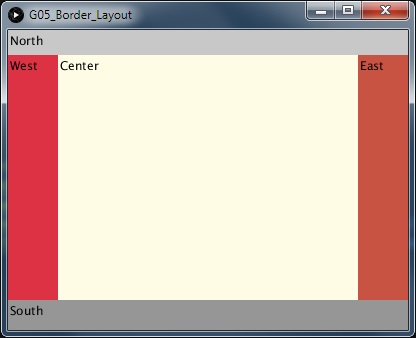
Another option to achieve this is to use setAnchor(int type, int value) which sets one anchor
to the
given value. This will
probably change the position and/or size of your element. If we have a button that we want to place in the
right bottom corner (i.e. with a spacing of 10px), we use:
myButton.setAnchor(RIGHT, 10);
myButton.setAnchor(BOTTOM, 10);
And without setting the position of myButton manually, it will be moved to the right bottom
corner. This also
makes the above example easier - you do not need to think to much about the size and sometimes on the
positioning:
import guiSET.core.*;

Frame f;
Container north;
Container west;
Container east;
Container south;
Container center;

int northHeight = 25; // (fixed) height of header ("north" section)
int southHeight = 30; // (fixed) height of footer ("south" section)
int eastWidth = 50;   // (fixed) width of left sidebar ("west" section)
int westWidth = 50;   // (fixed) width of right sidebar ("east" section)


void setup() {
    size(500, 400); // choose any size
    f = new Frame(this);
    f.setResizable(true);

    north = new Container(width, northHeight); // I left this one the same
    south = new Container();
    west = new Container();
    east = new Container();
    center = new Container();
    f.add(north, south, west, east, center); // add them all to f before creating any anchors !


    north.addAutoAnchors(LEFT, RIGHT);

    west.setWidth(westWidth);
    west.setAnchor(TOP, northHeight);
    west.setAnchor(BOTTOM, southHeight);

    east.setWidth(eastWidth);
    east.setAnchor(RIGHT, 0);
    east.setAnchor(TOP, northHeight);
    east.setAnchor(BOTTOM, southHeight);

    south.setHeight(southHeight);
    south.setAnchor(LEFT, 0);
    south.setAnchor(RIGHT, 0);
    south.setAnchor(BOTTOM, 0);

    center.setAnchor(TOP, northHeight);
    center.setAnchor(LEFT, westWidth);
    center.setAnchor(RIGHT, eastWidth);
    center.setAnchor(BOTTOM, southHeight);

    // Set background colors and add labels for demonstration purposes

    north.setBackgroundColor(color(200));
    north.add(new Label("North"));
    west.setBackgroundColor(color(220, 50, 67));
    west.add(new Label("West"));
    east.setBackgroundColor(color(200, 83, 67));
    east.add(new Label("East"));
    south.setBackgroundColor(color(150));
    south.add(new Label("South"));
    center.setBackgroundColor(color(255, 252, 229));
    center.add(new Label("Center"));
}

void draw() {
}
By the way, Frame does not need anchors as it always follows the size of the window.
Also the window does not need to be resizable for anchors to come in useful. Maybe you have a container you want to change in size dynamically and make its content follow...
